LMC 8.4 Config File Download
XML configs for your phone and how to load them
A config file stores every LMC 8.4 setting tuned for one phone model. Load the right XML config and you get better colours, sharper detail and working lenses in seconds, without touching the advanced menus.
LMC8.4 in the root of your internal storage, put the .xml config inside it, open LMC 8.4, double-tap the black area next to the shutter button, pick the config and tap Restore. Configs for R16 to R18 are shared on one official page, and most work across those builds.Table of Contents

LMC 8.4 Config Files (R16–R18)
Official XML config collection for LMC 8.4 R18 and earlier 8.4 builds.
What Is an LMC 8.4 Config File?
An LMC 8.4 config is a small XML file (usually a few kilobytes) that saves the app's settings: lens IDs, noise model, sharpness, saturation, HDR+ frame count, white balance and dozens of tweaks. People who own the same phone test these settings for hours and share the result. When you restore their config, your app copies those settings instantly.
A config does not change the app itself. If you do not like the result, restore another config or clear the app's data to go back to default settings.
How to Load an LMC 8.4 Config File (Step by Step)
- Create the LMC8.4 folder. Open your file manager and create a folder named LMC8.4 in the root of internal storage.
- Copy the XML file. Download the config for your phone and move the .xml file into the LMC8.4 folder.
- Open the config menu. Open LMC 8.4 and double-tap the black area next to the shutter button.
- Restore the config. Select your config from the list and tap Restore. The app restarts with the new settings.
Which Folder Does LMC 8.4 Use?
The official config page for Hasli's LMC 8.4 R16 to R18 says the configs folder must be created at /LMC8.4/ in the root of internal storage. The full path usually looks like /storage/emulated/0/LMC8.4/. Do not put the folder inside Download or DCIM, and type the name exactly, with capital letters and the dot.
Phones With Ready-Made LMC 8.4 Configs
The official R16–R18 config collection includes files for the following phones. Some models have several configs, and a few are labelled for a specific build (R16, R17 or R18).
| Brand | Models with configs |
|---|---|
| Samsung | Galaxy A71, A73, M51, Note 10 Plus, S20 FE, S20 Ultra (Exynos), S21 Ultra, S22 / S22+, S22 Ultra, S23 / S23+, S23 Ultra, S24 / S24+, S25 / S25+ |
| Xiaomi | Xiaomi 12, 12 Lite, 12 Pro, Mi 8, Mi 10T, Mi 10T Pro, Mi 11, Mi 11i, Mi 11 Ultra, Mi 11X, Mi 11 Lite 4G / 5G, Mi Mix 2S, Mi Note 10 Pro, Mi Pad 5, Black Shark 3 |
| Redmi | Redmi 9, Redmi 12, Redmi 13C, K30 Pro Zoom, K50i, Note 7 Pro, Note 8, Note 8 Pro, Note 9, Note 9 Pro, Note 9 Pro 5G, Note 9 Pro Max, Note 9S, Note 10, Note 10 Pro, Note 12 4G, Note 12 Pro, Note 13 4G, Note 13 Pro 5G |
| Poco | F1, F2 Pro, F3, F4, F5, F5 Pro, F6, M2, M2 Pro, M4 Pro 5G, M6 Pro, X3 NFC, X3 Pro, X4 Pro, X4 GT, X5, X5 Pro, X6, X6 Neo, X6 Pro |
| Realme | Realme 9 5G Speed, 9 5G SE, 9 Pro+, C25, C25s, GT Neo 2, GT Neo 3T, Narzo 20, Narzo 50, P4, X2 |
| OnePlus | OnePlus Open, 8 / 8T, 8 Pro, 9R, 11, 12, Nord, Nord 3, Nord 5, Nord CE2 Lite, Nord CE 3 Lite, Nord CE 4 5G, Nord CE4 Lite |
| Oppo | A17, A60, F9, Reno6 5G |
| Vivo / iQOO | Y16, Y20, Y21, T3, iQOO Z3, iQOO Z9 |
| Motorola | Edge 20, Edge 20 Pro, Edge 30 Neo, Edge 50 Neo, Edge 50 Pro, Moto G34, G52, G62, G82 |
| Others | Asus Zenfone 9, Honor X9a, LG Q83 5G, LG V50, LG V60 ThinQ 5G, Nothing Phone (2a), Tecno Camon 30 |
Can't find your phone? Look for a config made for a phone with the same camera sensor and processor. Many Redmi, Poco and Xiaomi models share hardware, so a config for a sister model often works.
Which Config Should You Choose?
- Try the first config listed for your phone. If the result looks good, stop there; you do not need to test them all.
- Match the build label (R16, R17 or R18) when there is one.
- R15 configs may also work on newer builds, but test every lens after restoring.
- No config for your phone? Use the default settings and turn off features that do not work, such as HDR+ Enhanced or a lens that crashes. Our best settings guide shows what to change.
How to Save Your Own LMC 8.4 Config
- Change the settings until you like the photos.
- Double-tap the black area next to the shutter button.
- Type a name for your config and tap Save. The XML file is created in the LMC8.4 folder.
- Copy the file to Google Drive or share it with friends who use the same phone.
Config Not Showing or Not Working?
- Empty list: check the folder name (
LMC8.4), its location (root of internal storage) and the storage permission. - App crashes after restore: the config uses a lens ID your phone does not have. Clear the app data and try another config.
- File ends in .xml.txt: rename it so it ends only in
.xml. - Wrong colours: the config may be for another build. Try the config labelled for your version.
More fixes are on the LMC 8.4 not working page. To start fresh, download LMC 8.4 APK R18.

We test LMC 8.4 builds and configs on popular Android phones and check every version detail against the developer's official release pages.
Frequently Asked Questions
Find answers to common questions about LMC 8.4.
Where do I put the LMC 8.4 config file?
How do I open the config menu in LMC 8.4?
Do R15 configs work in R18?
Why is my LMC 8.4 config list empty?
Is there an LMC 8.4 config for Infinix or Walton phones?
Related Guides
Keep learning about LMC 8.4.

LMC 8.4 Best Settings for Every Situation
The best LMC 8.4 settings for daylight, Night Sight, astrophotography, portrait and selfies, plus fixes for noise, crashes and slow saving.

LMC 8.4 for Redmi, Xiaomi and Poco
Install LMC 8.4 on Redmi Note, Xiaomi and Poco phones. Supported models, ready configs, HyperOS install steps and fixes for MediaTek Redmi phones.
LMC 8.4 for Samsung Galaxy Phones
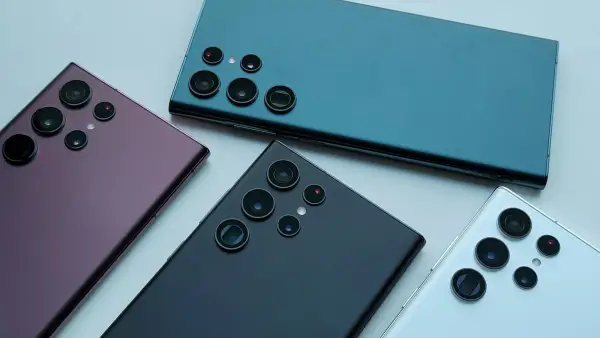
Install LMC 8.4 on Samsung Galaxy A, M and S phones. Which package unlocks the wide lens (Scan3D, Iris, Ruler), Samsung configs and fixes.